
Walk through a working warehouse, and you will count more than one kind of device. A receiving clerk scans cartons on a compact handheld. A forklift operator drives a vehicle-mounted tablet between racks. A picker wears a ring scanner and reads from a screen strapped to the wrist. The jobs differ, the screen sizes differ, and the amount of information each worker needs on-screen at any one moment differs, too.
Most mobile WMS interfaces for Microsoft Dynamics 365 Business Central ignore that reality. They give every worker the same layout, regardless of device or task. A dense, multi-column list works well on a handheld for an experienced picker, but it crowds a forklift tablet where the operator handles one pallet at a time. A single-record screen that suits a wearable wastes space on a larger display. When the interface clashes with how a worker actually works, scanning slows down, and mistakes creep in.
Warehouse Insight, the warehouse management solution that runs on Business Central, approaches this differently. Instead of a single interface, it offers three configurable mobile views, and you assign each to the device configuration it best fits.
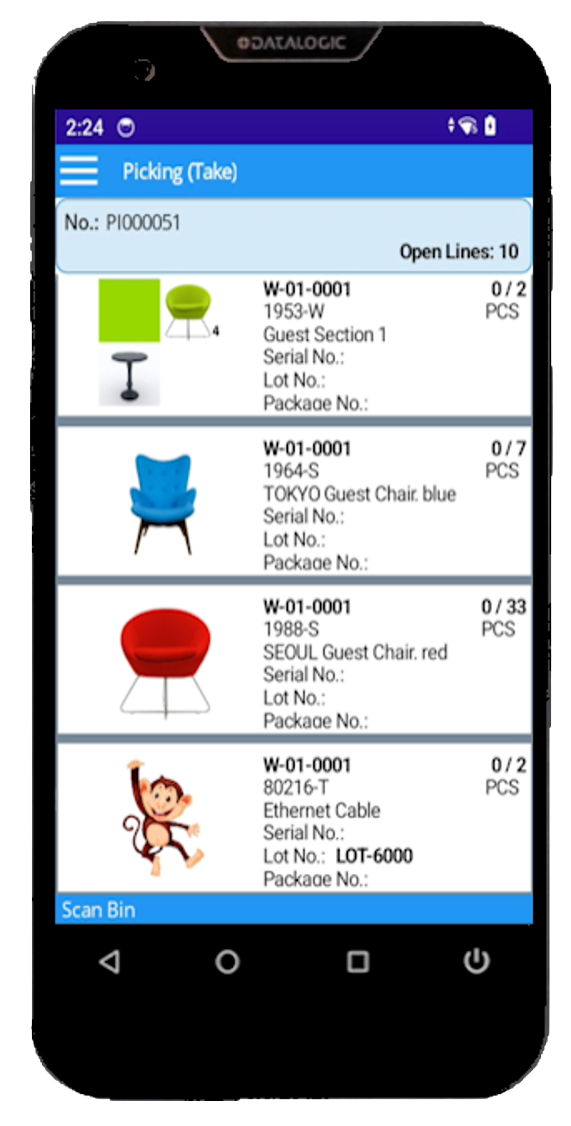
Rich Tile View shows each document line as a visual tile, with the item picture pulled directly from Business Central alongside the fields a worker checks before scanning: description, bin, lot or serial, and quantity. Color rules applied per row let a supervisor flag priority lines or highlight exceptions. It suits picking, receiving, and shipping on Android handhelds, where seeing the item image reduces mispicks before the scan.
Directed Card View presents one record at a time in a full-detail panel: bin, item, quantity, unit of measure, lot, serial, description, and source document, all on a single screen with nothing else competing for attention. Configurable factboxes sit alongside the panel to display the item picture or surface pick instructions for the order. This view fits vehicle-mounted tablets on forklifts and pick carts, as well as wearable computers paired with ring scanners, where a focused, one-task display matches the physical, step-by-step nature of the work.

Compact Grid View lists every document line at once in a high-density layout, with a footer panel that expands detail for the selected row. Workers sort by any column on the device and add or remove columns themselves, without administrator involvement. It is the right fit for smaller scanner screens and experienced workers who want full document visibility and quick navigation through a long pick list.

The difference that matters is where the configuration lives. You assign views, choose fields, set color rules, and configure factboxes inside Business Central, on the device configuration and device column pages. There is no separate interface designer and no external tool to maintain. The device reads its display logic from Business Central at runtime, just as it reads every other Warehouse Insight setting. Many WMS products for Business Central offer a single mobile interface. Matching three purpose-built views to your device fleet, all managed in one place, is a practical advantage when your floor runs mixed hardware.
See how the three views map to your devices and workflows. Learn more at WMSforDynamics.com, or talk to your Business Central partner.