
Print Barcode Labels for Microsoft Dynamics 365 Business Central
A barcode label is only useful if it exists at the right time and place. Warehouse Insight puts label printing directly in the hands of the worker: at the receiving dock when a vendor ships unlabeled goods, at the pick aisle when a license plate is complete, at the bin when a label is damaged, and at shipping when a carrier label needs to print before the driver arrives. Every label type, every trigger option, and every printer in your facility are configured in Business Central and available on the handheld device.
At a Glance
- Print item, lot, serial, bin, and license plate labels from any Android handheld to any BC-configured printer, including mobile printers.
- Labels trigger automatically at workflow steps, on demand via menu, or at document post, all configured in Business Central.
- Warehouse Insight’s barcode generator produces data matrix barcodes encoding item, lot, quantity, UOM, expiry, and variant in a single scannable code.
- Dynamic Ship integration extends print capability to carrier labels, packing slips, and bills of lading, triggered from the same device.
Have a Question about Printing Barcode Labels?
Key Capabilities
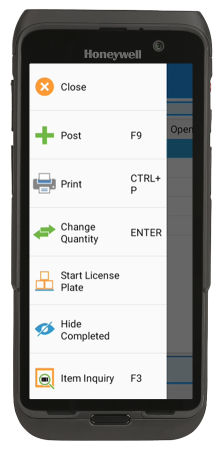
Item labels from any workflow. Workers print item barcode labels directly from the receiving, item inquiry, and production output applications on the device. The label report is configured in BC’s Report Selections page and prints to the printer assigned to the device. If a lot or serial number is selected at the time of printing, that tracking information is automatically included on the label.
License plate labels at pallet completion. When a worker stops a license plate build during receiving, picking, or shipping, the device prompts them to print the LP label immediately. The label is printed on the configured printer and applied to the physical container before it moves. LP label report selection is configured in Business Central’s Report Selections page.
Bin labels from the device. Workers reprint bin labels directly from the bin inquiry application without returning to a desktop. If a bin label is damaged or missing anywhere in the warehouse, any worker with a handheld can print a replacement on the spot from the bin inquiry menu.
Automatic label printing at workflow steps. Labels can be configured to print automatically when a worker confirms a quantity at receiving or production output, without requiring a manual print action. The Auto Print on Output option in Business Central’s device configuration triggers the label report when the quantity dialog closes. The worker specifies the number of labels to print during the quantity entry step.
Post and print. For operations that need labels to include lot or serial numbers that are only finalized at the time of posting, labels can be configured to print automatically when a document is posted. This ensures every label carries the confirmed tracking information from the posted transaction.
Carrier labels via Dynamic Ship. For operations using Dynamic Ship, FedEx, UPS, and other carrier labels, packing slips, and bills of lading are generated and printed from the handheld as part of the shipping workflow. Workers trigger carrier label generation from the shipping application menu after confirming the shipment, without leaving Warehouse Insight or opening a separate system.
Mobile printer support. Label printing works with both stationary printers and mobile Bluetooth printers carried by workers on the floor. Printer assignment is configured per device in Business Central, so each device automatically sends labels to the correct printer without the worker having to select a destination each time.
How Label Printing Works in Warehouse Insight
BC’s Report Selections configuration drives label printing in Warehouse Insight. Each label type—item labels, LP labels, bin labels, and carrier labels—is assigned a report in Business Central’s Insight Works Report Selections page. When a print action is triggered on the device, Warehouse Insight sends the request to Business Central, which runs the assigned report and routes the output to the printer configured for that device.
Printer assignment is managed in Business Central’s printer selection configuration. Each device configuration points to a default printer. Workers do not select a printer from the device unless the operation requires a choice. In facilities with multiple print stations, different device configurations automatically route labels to different printers.
Three trigger options are available and can be configured independently per workflow. Manual print sends the label when the worker presses Print from the device menu. Automatic printing on quantity confirmation sends the label as soon as the worker closes the quantity dialog, with an optional prompt for the number of copies. Post and print sends the label when the document is posted, capturing any lot or serial numbers that were only finalized at post time.

The Barcode Generator and Data Matrix Labels
Warehouse Insight includes a barcode generator tool that produces data matrix barcodes for use on item and pallet labels. A data matrix is a two-dimensional barcode symbology that can encode significantly more data in a smaller physical space than traditional one-dimensional barcodes.
A half-inch-square data matrix code generated by the Warehouse Insight barcode generator can encode the item number, lot number, expiry date, unit of measure, quantity, and variant code in a single scannable symbol. Workers scan a single barcode at receiving to populate all fields simultaneously, rather than scanning multiple barcodes for each data element. At larger print sizes, the same data matrix code can be scanned from distances of 40 to 50 feet or more with appropriate long-range scanner hardware, making it practical for pallet labels in high-bay racking where workers cannot approach the label on foot.
Sample label reports in both data matrix and Code 39 formats are included with Warehouse Insight and are available as a starting point for custom label designs. Reports can be copied, modified, and renumbered in Business Central without affecting the base application.

Why Warehouse Insight Label Printing Stands Out
Warehouse Insight’s label printing capability goes beyond what most WMS solutions document for Business Central. The combination of the built-in barcode generator, support for the data matrix format with GS1 encoding, configurable trigger options per workflow, mobile printer support, and Dynamic Ship carrier label integration from the same device covers the full spectrum of label printing requirements across inbound, internal, and outbound workflows.
The data matrix barcode generator is the detail that delivers the most practical value for operations that produce their own labels. A single scan at receiving that captures item, lot, quantity, UOM, expiry, and variant eliminates the multi-barcode scanning sequences that slower one-dimensional label formats require. For operations running production output or receiving goods from vendors who do not label their products, that is a meaningful reduction in scan steps per transaction across every shift.
Who Uses Label Printing
Receiving clerks print item labels at the dock for incoming goods that arrive without vendor barcodes, and LP labels for pallets built during receiving. Production workers print item and lot labels automatically at the moment of output confirmation, with lot numbers included from the quantity dialog. Forklift operators and warehouse workers reprint damaged bin or item labels directly from the device without supervisory involvement.
Shipping staff trigger carrier label generation via Dynamic Ship from the handheld at the point of shipment confirmation, without switching applications or returning to a desktop. Warehouse supervisors configure all print triggers, report selections, and printer assignments in Business Central, with no changes required on individual devices.

Frequently Asked Questions
Workers can print item barcode labels, lot and serial number labels, license plate labels, bin labels, and, for operations using Dynamic Ship, carrier labels including FedEx and UPS shipping labels, packing slips, and bills of lading. All label reports are configured in Business Central’s Insight Works Report Selections page. Label printing is available as a menu action in the receiving, item inquiry, bin inquiry, license plate, shipping, and production output applications.
Warehouse Insight recommends data matrix barcodes for item labels, particularly where multiple data elements need to be encoded in a single scannable code. The Warehouse Insight barcode generator produces data matrix codes that can encode an item number, lot number, expiry date, quantity, unit of measure, and variant code on a half-inch-square label. At larger print sizes, data matrix codes produced for pallet labels are scannable from 40 to 50 feet or more with appropriate long-range scanner hardware, making them practical for high-bay racking environments. One-dimensional Code 39 labels are also supported for operations with simpler requirements or existing label formats.
Yes. Warehouse Insight supports automatic label printing triggered at two points in the workflow. The Auto Print on Output option in Business Central’s device configuration triggers the label report automatically when a worker closes the quantity dialog during production output or receiving, with an optional prompt for the number of copies. Post and print triggers label printing when the document is posted, which is the preferred approach when lot or serial numbers are only finalized at post time and need to be included on the label.
Printer assignment is managed in Business Central’s printer selection configuration, not on the device itself. Each device configuration points to a default printer, and label print requests are automatically routed to that printer when triggered. For facilities with multiple print stations across the warehouse floor, different device configurations route to different printers. Workers do not need to select a printer on the device for standard workflows. Mobile Bluetooth printers carried by workers are assigned to the relevant device configuration in Business Central, just as stationary printers are.
Yes. For operations using Dynamic Ship, carrier label generation is available as a menu option in the Warehouse Insight shipping application. Workers confirm the shipment, select the carrier and service, and Dynamic Ship generates the carrier label, packing slip, and bill of lading—the label prints to the dock printer configured for the device. The entire sequence happens from the handheld without opening a separate application or returning to a desktop.