
Customizing document management settings in Business Central allows you to streamline the handling and storage of various types of documents associated with records. This includes setting up specific document types, determining storage locations, and configuring integration with platforms like SharePoint. By tailoring these settings, you can optimize your document workflow, ensure proper categorization, and maintain a comprehensive record-keeping system.
How to customize document management settings in Business Central?
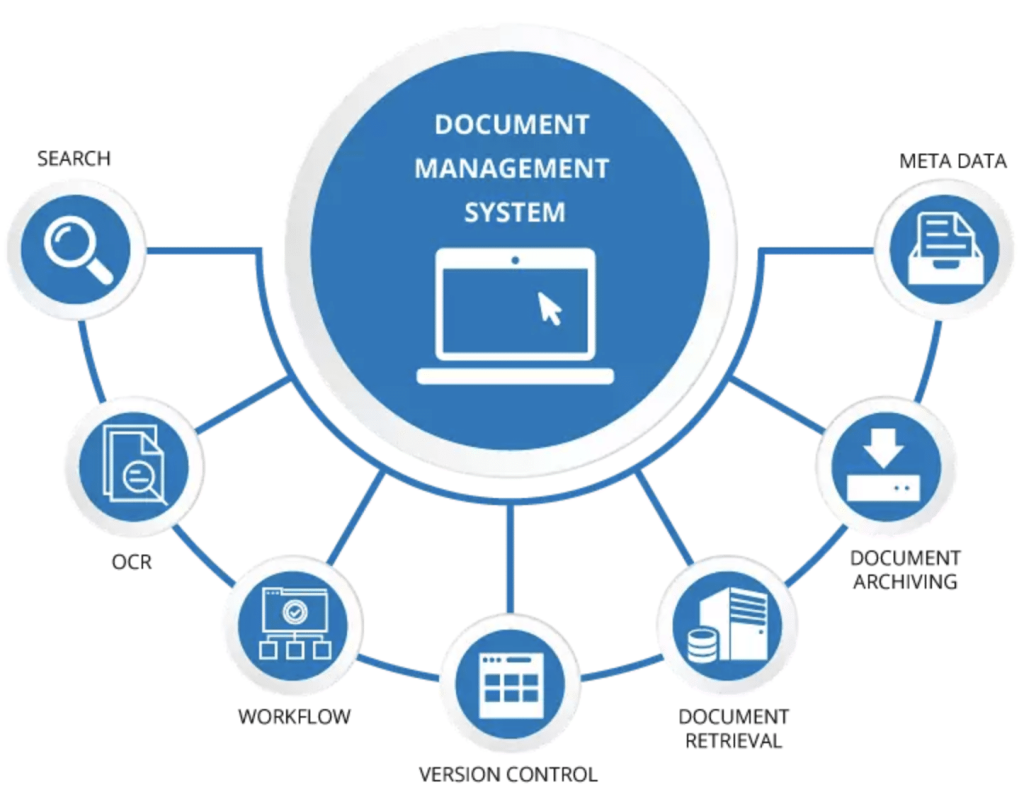
Beginning with the configuration of document types and storage locations, you can enhance the accessibility and organization of your document management system in Business Central. This setup is crucial for ensuring efficient document retrieval and storage, particularly when integrating with services like SharePoint for enhanced collaboration and security.
- Configure Document Types: Document types are essential for categorizing attachments in Business Central. You can configure various document types such as text, image, and file types, and assign them specific behaviors (like attachments or URLs) and storage locations. This organization aids in maintaining structured document management.
- Set Up Locations for Document Types: Document storage locations can be set up to use Microsoft Azure Blob Storage, providing a secure and scalable storage solution. For integration with SharePoint, specific settings allow documents to be stored and accessed directly from SharePoint sites, enhancing collaborative capabilities.
- Access and Manage Attachments: In Business Central, the Attach button facilitates easy management of document attachments. This function is integrated across most data pages, enabling users to attach, view, or manage documents directly related to records. This feature ensures that document handling is streamlined and accessible throughout the platform.