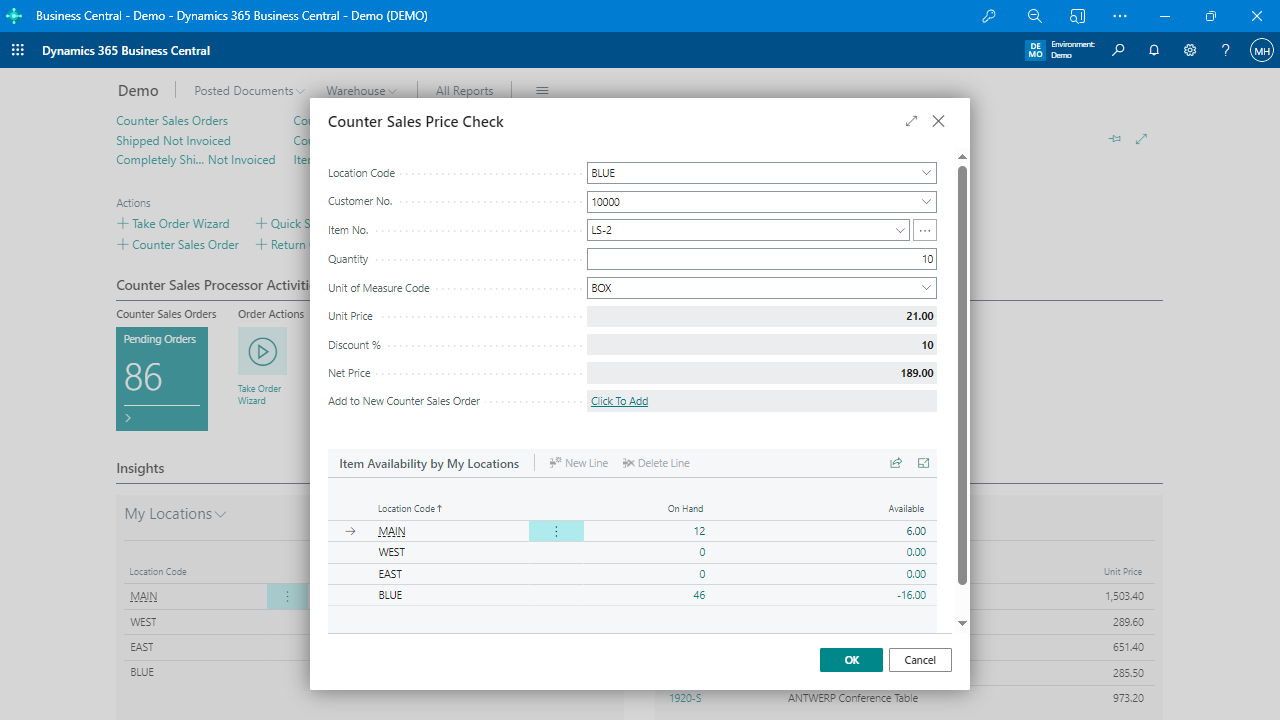


In many counter-based sales environments—such as trade desks, parts counters, and small outlet stores—frontline staff operate under constant pressure. Phones are ringing. Walk-in customers are waiting. Inventory is tight. The margin for error is thin.
And yet, Business Central users in these environments are often left to fumble through standard sales order pages that weren’t built for speed, context, or front-counter accuracy. What happens?
Mistakes like these not only waste time but also directly impact cash flow, customer satisfaction, and inventory integrity.
Imagine this: a walk-in customer asks for “LS-2 cables.” The counter rep types it into the sales order manually. There’s no context on price, inventory, or even who the customer is. Multiply that by 30 transactions a day, and the opportunity for error—and frustration—grows.
If the rep doesn’t pick the correct customer record, prices may default incorrectly. If the wrong location is selected, stock looks unavailable when it’s actually in the building. And if the rep forgets to apply a discount, someone’s calling back angry.
Even barcode scanners don’t save the day if they’re not paired with logic. You might scan in cables and a power supply—but did the system prompt you for a matching power cord like others usually buy?
Business Central’s sales order screens are powerful, but they’re not optimized for walk-in, cash-and-carry environments. There’s no:
That’s not a flaw in Business Central—it was simply not designed with the parts counter in mind.
Counter staff need tools that adapt to them—not the other way around. Here’s what that looks like in practice:
If your team spends time cleaning up incorrect sales orders, issuing credits, or fielding complaints because a front-counter sale went sideways, you’re not alone. However, those aren’t just process issues—they’re signals that your system needs to work more effectively for the people on the front lines.
That’s where guided tools make a difference: not by replacing your ERP, but by enhancing it in the places it struggles.
One way to bring these guided workflows to life is with the Counter Sales app from Insight Works. It introduces intuitive wizards, barcode-based quick sales, price override controls, and intelligent item search directly into Business Central—without needing a separate POS system.
For organizations that rely on walk-in or phone-based sales, it’s a way to get more from Business Central—without asking frontline staff to become ERP experts.
Learn more at POSfoDynamics.com or reach out to your Microsoft Partner.